
Troubleshooting Chatbots in Sprout Social
Table of Contents
New to Sprout Social? Learn how our Bot Builder fits into our suite of social media automation tools here.
This article provides solutions to common technical issues with Sprout Social's chatbots for Facebook, X (formerly Twitter), Instagram and WhatsApp. Learn how to resolve configuration errors, manage responses effectively, fix delays and integration failures, and optimize your chatbot's performance across platforms.
Understanding Chatbot Functionality in Sprout Social
Sprout's Bot Builder empowers you to create automated conversational workflows for Facebook Messenger, X (Twitter), Instagram Direct Messages, and WhatsApp. These bots help streamline customer interactions by:
- Answering FAQs
- Create unique marketing experiences
- Collecting customers’ requests or information
- Routing conversations to the right team
Bots are fully integrated into Sprout’s Smart Inbox and support a mix of text, buttons, quick replies, and images depending on the platform. Smooth performance depends on correct configuration, seamless integration, and continuous optimization.
For information on how to create a chatbot in Sprout, please check our Bot Builder article.
Common Chatbot Scenarios and Fixes
Why aren't some users receiving a welcome message?
X (formerly Twitter):
-
If a user has previously messaged your account, the welcome message will not be sent.
- Typing a keyword, or deleting a user's DM history will allow welcome messages to send.
Why isn't my chatbot’s Welcome Message showing?
Facebook, Instagram, WhatsApp and X (formerly Twitter):
- Make sure your profile is connected to Sprout with all permissions granted.
- If disconnected, try reauthorizing your profile: click on the bell/triangle icon in the top right of Sprout to view your notifications. Once there, click on the notification telling you that your profile is disconnected and then click the Reauthorize button.
- Ensure your Chatbot is enabled/online: Click on the Bots tab located on the left menu, locate the chatbot > select it > and ensure the bot is ‘online’ by clicking on the top right option > save changes.
- In the case of X (formerly Twitter), you also must ensure that Direct Messages are enabled for everyone: Log into the X (Twitter) Profile > Review Settings and Privacy > Privacy and Safety > Direct Messages > Select everyone.
- If this is not done natively ahead of time, users see a pop-up message to enable this directly via the Sprout platform
Why is my chatbot giving incorrect responses?
- This may happen when keyword triggers are too broad: Narrow your trigger keywords to avoid unintentional matches.
- Use the Bot Builder preview: Test all conversation paths to confirm they deliver expected responses.
Why are my customers receiving Duplicate Auto-Replies from my chatbot?
A common issue occurs when users receive two auto-responses: one from the native platform and another from the Sprout Bot.
To avoid this, disable native auto-responders when using a Sprout chatbot.
How to disable native auto-replies on Facebook and Instagram:
- For the Facebook page, go to your Facebook Page settings > under Messaging > Automated Responses > turn off any instant replies or away messages.
- For both Instagram and Facebook, this can be disabled in Meta Business Suite: click on "Inbox" and then "Automations" > locate the Instant Reply you want to disable > click the toggle switch next to the instant reply to turn it off.
How to disable native auto-replies on X (Twitter)
- Log in to your X (Twitter) account.
- Navigate to Settings and Privacy > Privacy and Safety > Direct Messages.
- Disable any automated welcome messages set natively.
How to disable native auto-replies on WhatsApp:
- Go to your WhatsApp mobile app > click on Settings > Select ‘Business Tools’ > Scroll down to ‘Messaging’ and locate the auto-reply you’d like to disable > turn it off.
Why is my chatbot responding slowly?
Delays in the chatbot may be caused by the following:
- API latency: Sometimes the platform's API experiences slowness. Check the native platform’s status page for outages.
- High message volume: During periods of high message volume, you may notice a brief delay in responses. This is typically short-lived, and messages are usually processed within a few minutes.
- Sprout Social System Status: While rare, you can always check Sprout's system status page for any platform-wide issues that may be affecting performance.
What can disrupt chatbot integrations and how to fix them?
Chatbot failures are usually tied to expired permissions or connection errors.
Changes to Profile
- A changed password, revoked access, or expired token can break the bot connection. To reconnect it, click on the bell/triangle icon in the top right of Sprout to view your notifications. Once there, click on the notification telling you that your profile is disconnected and then click the Reauthorize button.
Permissions Issues
- For Facebook, Instagram & WhatsApp: It's important to ensure that the Sprout integration has full page permissions, as partial access can affect the functionality of the chatbot. To check, log into the personal Facebook profile used to authorize the Page, click on Settings > Business Integrations and make sure Sprout Social is listed and has full Page permissions.
- For X (Twitter): Make sure you're logged in as the authorized account in Sprout > check app permissions in your X profile settings> ensure Sprout Social is granted full access.
Why is the Restart option not showing on my Facebook chatbot?
In Europe, Facebook doesn't display the Restart button for users. As a workaround, you can set up a keyword trigger, for example, “menu”, to prompt the bot to resend the Welcome Message or another relevant response.
Keep in mind that Facebook bots don't reset automatically. To restart a conversation, users must either click a Restart button (where available) or send a specific keyword that you’ve configured to re-engage the bot.
I keep getting an error message: “Please update your Facebook Permissions” when trying to configure my Facebook chatbot. What can I do to fix it?
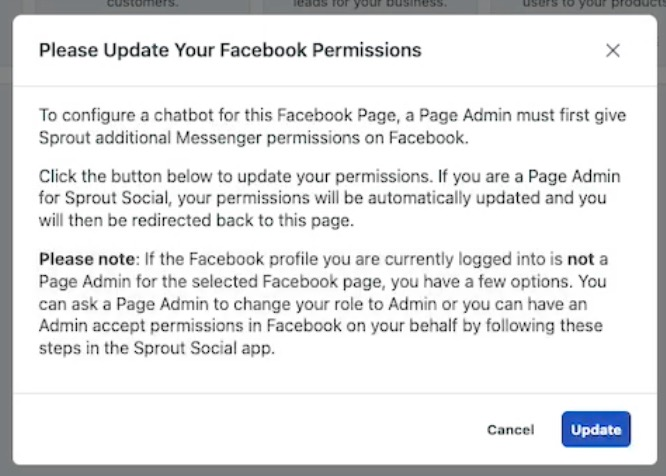
This is generally caused by the level of access a user has to the Facebook page.
You must have Full Control over the Facebook page or in the Meta Business Suite in order to configure Facebook Chatbots. We recommend reviewing your access natively and ensuring the full control option is enabled under your name when viewing the page’s permissions.
My chatbot’s quick replies or buttons are not working. How can I fix it?
This is generally caused by keyword commands being set up incorrectly.
- Refine keyword triggers: If your bot relies on keyword-based triggers, make sure the keywords are clear, specific and don't exceed the character limit. Using overly broad terms can cause the bot to activate at the wrong time, deliver irrelevant responses or not show the options.
- Test the conversation flow: Use the Bot Builder’s preview feature to walk through each step of the chatbot experience. This helps ensure that every path leads to the correct response and behaves as expected.
FAQs
Why are my customers receiving two different chatbot auto-replies when they message my page/profile?
This typically happens when the native platform’s auto-reply is still active. Disable it in your Facebook or X settings to avoid duplication.
Why isn't my chatbot's Welcome Message showing up?
Check the connection status and permissions for the profile. Make sure the Welcome Message is configured properly in Bot Builder, and DMs are enabled on X.
Can I respond to a user directly, even if a chatbot is active?
Yes. You can manually reply to any message through the Smart Inbox, even if a bot workflow is active.
Why can’t I create or configure a chatbot?
This is typically due to permissions. Users must have the Bots feature permission enabled. If unsure, reach out to an Admin so they can enable the Bots permission for your account.
Additionally, users with Full Publishing permission can create, edit, activate or delete a chatbot for a given profile.
Users with Read Only, Needs Approval or Can Reply permissions to the profile can view existing chatbots but can't create new chatbots or take action (i.e. edit, activate or delete)
Do you support multi-language bots?
No, at this time we don't support bots with multiple languages.
How do I disable a Chatbot In App?
Click on the Bot tab located on the left menu > locate the Bot you’d like to disable > and toggle the online/offline button at the top right.
I’m on a trial, can I still use the Bot feature?
You can use our Bots feature when on the Advanced Plan Trial
I can’t activate another chatbot for my profile. What’s wrong?
While there is no limit to the number of chatbots you can create, each profile can only have one chatbot active at any time.
Can I set up the chatbot for specific working hours?
At this time, we don't support scheduled availability for bots. To manage when a bot is active, we recommend manually enabling or disabling it as needed.
I have disabled all my chatbots in Sprout but my customers keep getting auto-replies. How can I stop the messages?
If all the chatbots have been manually disabled in Sprout, it is likely that a chatbot or auto-replies have been set up natively, or other 3rd party apps to build bots have been used.
We recommend reviewing the setup natively and ensuring the automated responses are toggled off on the network.
Was this article helpful?

